
YUMI Py: Universal Cross Platform Multiboot USB Creator for Windows and Linux: Create a multiboot USB drive with Windows installers, Linux distros, antivirus rescue disks, and recovery tools ~ all on one bootable USB flash drive. YUMI Py is a complete Python rewrite and full port of YUMI exFAT that runs natively on both Windows and Linux, adding automatic ISO downloads, batch ISO installs, built in QEMU portable virtual machine testing, and local VirtualBox USB drive testing. There’s even advanced options to Backup, Restore, or Clone a USB drive.
What Is YUMI Py?
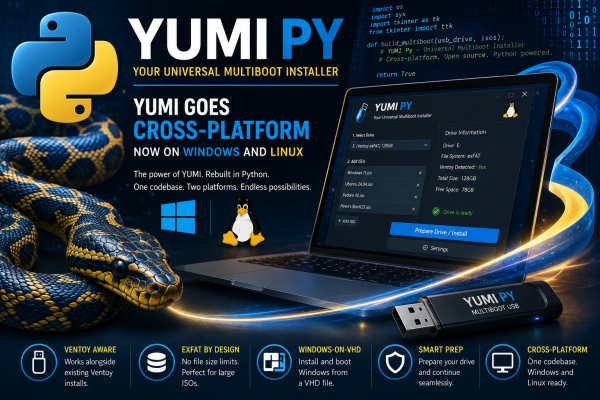
YUMI Py is a multiboot USB creator for Windows and Linux. Whether you’re building a Windows installation drive, testing Linux distributions, assembling a portable repair toolkit, or carrying rescue and recovery utilities, it lets you organize everything on a single exFAT formatted USB flash drive through one simple graphical user interface.
Unlike the original Windows only YUMI, the new Python version shares one codebase across both operating systems, so new features, bug fixes, and distro support ship to Windows and Linux users at the same time. If you’d like to start with a slightly less feature packed tool, you might want to use UUI to make a bootable USB.
Quick answer: YUMI Py is a multiboot USB creator port of YUMI exFAT, rebuilt in Python. It runs natively on Windows 10/11 and modern Linux distributions, installs ISO/IMG files (plus VHD/VHDX on Windows), supports persistence for Linux distros, automatically downloads current releases, includes QEMU portable VM and VirtualBox test booting so you can verify a drive or ISO works before rebooting into it, and can now stream any installed ISO to a browser on another device over your local network (LAN).
YUMI Py Overview
- Create multiboot USB drives on Windows and Linux from one shared app
- Install multiple ISO and IMG files for Linux distros, rescue disks, and utilities
- Boot Windows directly from VHD/VHDX images (Windows-only feature)
- Enable persistence for supported Linux distributions
- Automatically download current Linux releases with resume support
- Queue multiple installations in a single batch operation
- Test boot installed images with QEMU portable virtual machine emulation
- Test boot a USB drive in your locally installed VirtualBox
- LAN Share (boot ISO from network) – stream any installed ISO to another device on your network from a browser – live, with persistence, or as an already installed VM
- Back up, restore, or clone USB drives, complete with byte level verification
- Flash a standalone ISO or IMG file directly to a USB drive, byte for byte, for making a single purpose bootable USB instead of multiboot
- Compatible with and works alongside existing Ventoy or Universal USB Installer (UUI) installations instead of overwriting them
- Uses an exFAT storage filesystem so file sizes aren’t capped at 4 GB like FAT32
Why Choose YUMI Py?
Most USB creation tools erase the drive every time you write a new operating system. YUMI Py is built to be a persistent, multiboot workspace: add Windows installers, Linux distributions, rescue disks, system diagnostic tools, and other bootable utilities to the same drive without starting over, while getting persistence, automatic downloads, portable virtualization, and even create drive image backups on both Windows and Linux.
- Build a true multiboot USB instead of reflashing your drive for every OS
- Run natively on Windows and Linux from a shared codebase
- Install ISO and IMG images for hundreds of supported distros and tools
- Download supported Linux distributions automatically, with resume on interruption
- Enable persistence for compatible Linux distributions
- Test boot operating systems in QEMU or VirtualBox without rebooting
- Boot ISOs on other devices over your local network straight from a browser
- Back up, restore, and clone complete USB drives with optional verification
- Work alongside existing Ventoy installations
If you’ve built a multiboot USB with YUMI before, the core workflow is unchanged – you’re still adding operating systems and utilities to a single drive. What’s different is the cross-platform Windows + Linux build foundation and the list of new capabilities below.
What’s New in YUMI Py
True cross platform support. YUMI Py runs natively on both Windows and Linux from the same shared codebase. On Linux, it automatically requests administrator privileges when needed using pkexec, sudo, or another privilege-elevation method appropriate for your desktop environment.
Ventoy aware drive detection. If your USB drive already has Ventoy installed, YUMI Py detects it and works alongside it instead of recreating the drive, correctly recognizing Ventoy’s dual partition layout on both Windows and Linux so files land on the right data partition.
Windows on VHD support (Windows only). If you boot Windows directly from a VHD or VHDX file, that workflow is still here, rebuilt for the Python engine. Because VHD/VHDX booting relies on Windows specific disk APIs (DiskPart, DISM, and the Windows boot manager), this feature is only available in the Windows build – it’s hidden from the interface entirely when running on Linux. ISO and IMG installs work identically on both platforms.
Smarter drive preparation. Instead of stopping with a warning when you select an unprepared USB drive, YUMI Py offers to prepare it automatically before continuing with whatever you were trying to do.
exFAT by default. USB drives are formatted with exFAT, removing FAT32’s 4 GB file-size limit so today’s larger Windows installers and Linux ISOs can coexist on one multiboot drive.
Batch installation. Queue multiple ISO/IMG files (and VHD/VHDX on Windows) for installation in a single session. Where supported, persistence can be configured individually for each Linux distribution before the queue starts.
Automatic ISO downloads with resume support. Pick a distribution from the drop list and YUMI Py downloads the current release straight to your USB drive – no separate ISO left sitting on your computer. Downloads run concurrently (one to four at a time), interrupted downloads resume automatically the next time that drive is selected, and each USB drive keeps its own independent download queue.
Portable virtual machine testing. Test boot installed operating systems without restarting your computer. Run in QEMU quickly launches an installed image; Install to VM installs it to a virtual hard disk stored on the USB drive for repeated testing. QEMU is downloaded and configured automatically the first time it’s needed. To test an entire multiboot drive – bootloader and menu included – the Backup/Restore tab can boot the physical drive in VirtualBox.
Verified backup, restore, and USB drive cloning. The optional Verify after writing feature re reads the completed image and compares each byte with the source, confirming backup, restore, and clone USB drive operations finished correctly.
LAN Share – boot from any browser on your network. A new headless QEMU powered LAN Share tab serves the ISOs already on your USB drive to any other device on your local network. Open a browser on a phone, laptop, or another PC, pick a distro, and it boots right there in the tab – live, with persistence, or straight into an already installed VM – with no extra software and no second copy of the ISO. Note: being run from LAN, it is http:// only.
A polished native interface. YUMI Py includes platform-aware DPI scaling, a Light and Dark theme with in-app switching, adjustable UI scale presets, improved font rendering, desktop integration, and app branding so it feels native on both Windows and Linux instead of running one interface everywhere.
The YUMI exFAT multiboot USB creator served millions of Windows users well for many years, but building and maintaining a complex application entirely in NSIS scripting eventually became limiting. Native Linux support wasn’t practical, and adding new features often meant increasingly convoluted scripting.
Rewriting YUMI in Python with a Tkinter interface solved those limitations and opened the door to real cross-platform development. Windows and Linux now share the same core code, so new features, bug fixes, and supported distributions get added once instead of twice.
A Note About Antivirus Warnings
The Windows release of YUMI Py is compiled with Nuitka and requires administrator privileges to perform low-level USB operations. Because of this, some antivirus products may initially flag newly released builds as suspicious – a common false positive for newly compiled, elevation-requesting applications that haven’t yet built a reputation with antivirus vendors.
Code signing is planned for a future release to reduce these warnings further, and the source code is always available for anyone who wants to verify exactly what the application does before running it.
Installing and Using YUMI Py
Getting started takes a few minutes: download the build for your operating system, launch the app, select a USB drive, and start adding operating systems, utilities, or recovery tools.
If you need a fast, reliable flash drive for a multiboot build, see our Fastest USB Flash Drives guide.
System Requirements
- Windows 10 or Windows 11, or a modern 64-bit Linux distribution
- USB flash drive or external SSD (exFAT-capable)
- Administrator/root privileges for formatting and drive preparation
- Internet connection only for optional downloads, updates, and VM/QEMU setup
Changelog:
yumi_py-1.0.9 Change Windows drive detection flow to fix a case in which ext4 formatted drives appear unformatted. Show them as linux formatted, instead. Note: Windows can’t natively use ext formatted drives.
yumi_py-1.0.8 Autodetect and select first YUMI prepared or compatible drive “if available” on startup. Make ISO file detection case insensitive.
yumi_py-1.0.7 Add notifications spinner on detect/refresh drives. Save disclaimer acceptance choice.
yumi_py-1.0.6 Set to autodetect and work with YUMI, UUI, or vanilla Ventoy. Span Entries in Add Multiple and Auto Download ISOs to full container width. Set to Show All Drives.
Download YUMI Py for Windows
Supporting YUMI: If you shop on Amazon, one of the easiest ways to support this project is by starting your purchase through our Amazon affiliate link. It doesn’t cost anything extra, and qualifying purchases help fund future development. Thank you!
- Download the latest Windows version of YUMI Py.
- Double click yumi_py-1.0.x.exe.
- Approve the Windows UAC prompt when administrator privileges are requested, and then read through and accept the terms.
- Select your USB drive and begin creating your multiboot USB.
Download YUMI Py for Linux
Two separate Linux builds are available, covering both current and older distributions. If you’re unsure which applies to you, try the standard build first – it simply won’t launch if your system’s glibc is too old, at which point the legacy build is your fallback.
- Standard build – targets current distributions (Ubuntu 22.04+, Fedora, Debian 12+, and similar) running glibc 2.35 or newer.
- Legacy compatibility build – built against manylinux2014 (glibc 2.17), for older or more conservative systems such as CentOS 7-era installs, older Debian/Ubuntu LTS releases, or minimal server images.
- Open a terminal (Ctrl+Alt+T).
- Download the build that matches your system:
# Standard build (glibc 2.35+) wget https://yumiusb.com/downloads/YUMI/yumi_py-1.0.9 Legacy Linux compatible build (glibc 2.17+) wget https://yumiusb.com/downloads/YUMI/yumi_py-1.0.9-legacy - Make it executable:
chmod +x yumi_py* - Launch the application:
sudo ./yumi_py-1.0.9or
sudo ./yumi_py-1.0.9-legacy
To check your distro’s glibc version, run ldd --version in a terminal; it’s reported on the first line.
A Tour of YUMI Py’s Tabs
YUMI Py organizes its tools into a series of tabs, making it easy to create, manage, download, test, and maintain multiboot USB drives without digging through menus.
Create – Add a Single Boot Image
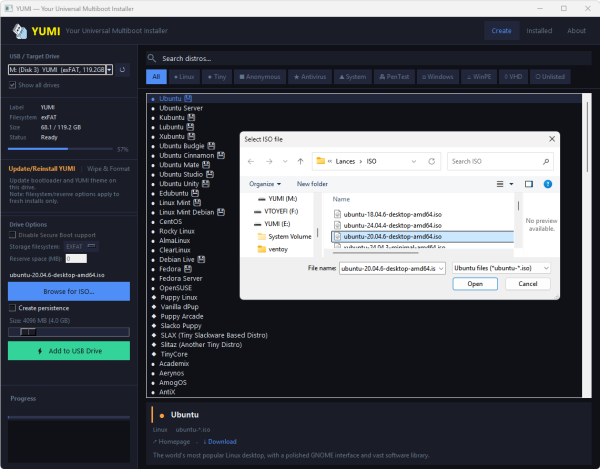
The Create tab is where most users start. Browse or search the supported distributions and utilities, review the info panel, and add a single ISO or IMG file (or VHD/VHDX on Windows) to your USB drive.
- Select your USB drive. If it hasn’t been prepared yet, YUMI Py can prepare it for you automatically.
- Search by name, browse categories, or manually browse to a local ISO, IMG, VHD, or VHDX file.
- Review the description, homepage link, and download details if you want to double-check your selection.
- Click Add to USB Drive to begin installation.
Add Multiple – Install Several ISO Images at Once
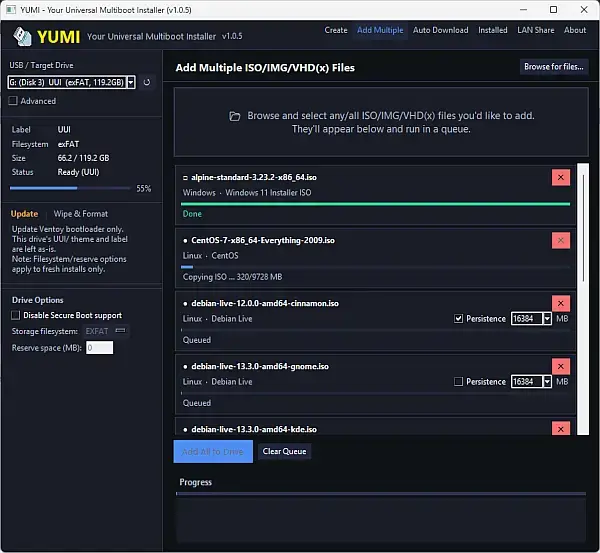
The Add Multiple ISO/IMG tab lets you queue several operating systems and utilities for installation in one session instead of repeating the process one image at a time.
- Select your USB drive.
- Open the Add Multiple tab.
- Click Browse to select as many ISO, IMG, VHD, or VHDX files as you’d like – each is added to the queue as a row you can review before starting.
- Enable persistence individually for each supported Linux distribution in the queue.
- Click Add All to Drive – each queued image is processed in sequence.
Auto Download – Batch Install Current ISO Releases
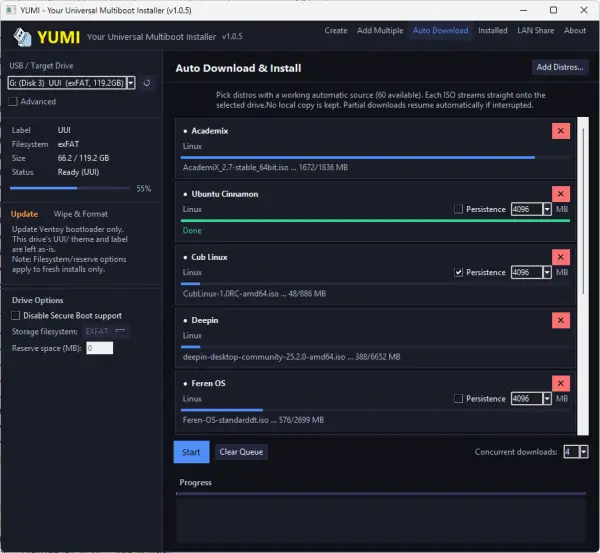
Instead of manually downloading ISO files first, the Auto Download tab pulls current releases straight from their official sources and installs them onto your USB drive automatically.
- Select an already prepared USB drive.
- Click Add Distros… and choose one or more Linux distributions.
- Optionally configure persistence for each supported distribution.
- Adjust Concurrent downloads between one and four simultaneous transfers. Faster internet connections benefit from more concurrent downloads, while slower USB drives may perform better with fewer.
- Start the queue and let downloads and installations complete automatically.
Each USB drive keeps its own independent download queue. Switching to another drive doesn’t interrupt downloads already in progress, and any interrupted download resumes automatically the next time that drive is selected.
Installed – Manage, Test Boot Images, Create VM
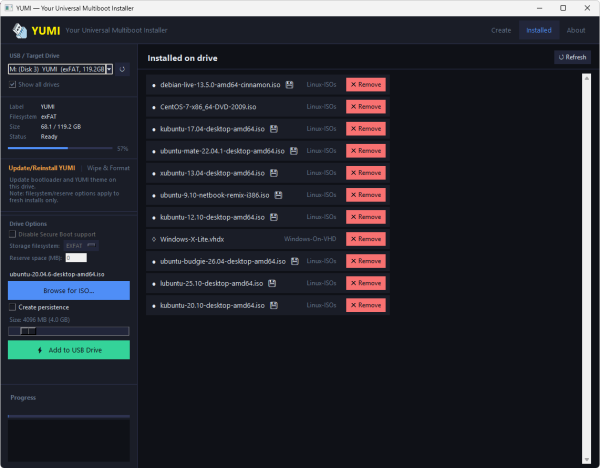
The Installed tab gives you full control over everything currently on your multiboot USB drive. Whatever tab you used to add files (Create, Add Multiple, or Auto Download) you can manage here. Remove installed files, delete just its persistence file, or even boot a file directly from a virtual machine without restarting your computer.
- Open the Installed tab to see every operating system and utility currently on the selected USB drive.
- Select an entry to remove just that item or, where supported, delete only its persistence file while leaving the rest of the drive untouched.
- Click Run in QEMU to boot the selected image in a temporary virtual machine. If persistence exists for that image, it’s used automatically.
- Choosing Install to VM will ask you to create a virtual hard disk image to be stored on the USB drive.
It’ll then proceed to boot from the ISO, detecting and mounting that image on boot.
From the running OS, you can proceed to fully install the running operating system onto the virtual hard disk image.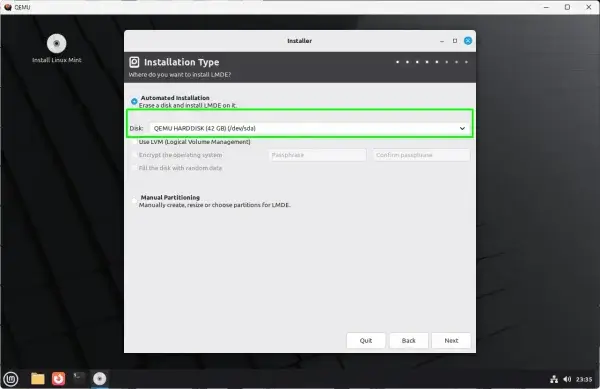
Install to the Virtual Machine Hard Disk Image when prompted Once installed, the button becomes Boot HD Image, letting you launch that installed system directly without repeating the installer.
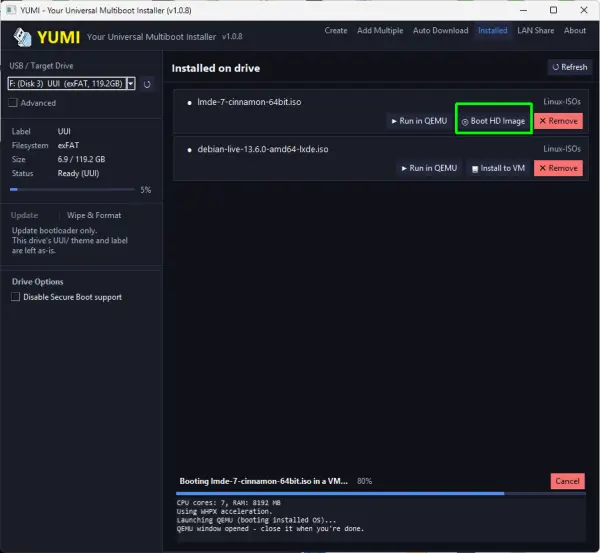
Choosing to Boot from the full HD Image (as a full installation) - Using the Remove button: Confirm any removal – only the selected item is removed, leaving every other installed distribution or utility intact.
The first time you use either virtualization option, YUMI Py checks whether QEMU is available. On Windows, it can download and configure a portable QEMU install automatically. On Linux, it points you to the right packages for your distribution. Before booting, you can set CPU cores, memory, display settings, and hardware acceleration. Installing to a VM also lets you choose the virtual disk size or discard an existing VM and reinstall from scratch.
Backup/Restore – USB Cloning & ISO/IMG Flashing
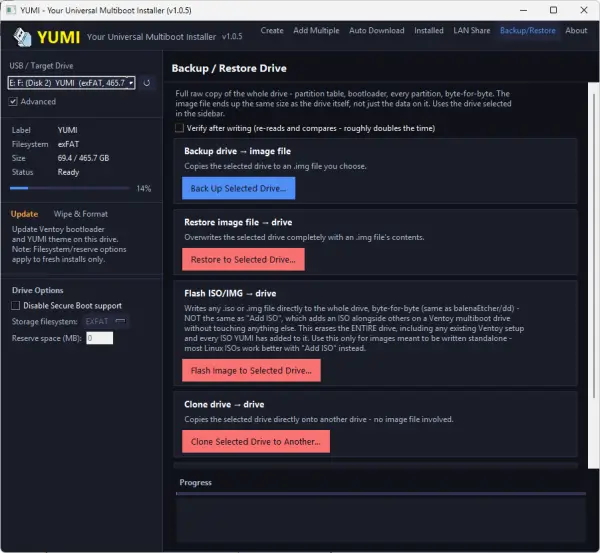
The Backup/Restore tab provides advanced block level imaging for users who want full control over their USB drives, including a standalone Flash OS option for writing a single image directly to a drive. Because these are whole disk operations, the tab stays hidden until Advanced mode is enabled.
- Enable the Advanced checkbox to reveal the Backup/Restore tab.
- Optionally enable Verify after writing. After a backup, restore, or clone finishes, YUMI Py checks the destination and compares it against the source to confirm an exact copy. Note: verification can double the total operation time.
- Choose the operation:
- Backup USB creates a complete image of the selected USB drive.
- Restore USB writes a previously created image back to a USB drive.
- Clone USB duplicates one physical drive directly onto another.
- Flash ISO/IMG writes any standalone ISO or IMG file directly to the whole drive, erasing everything currently on it, including any existing multiboot setup, so use this only for images meant to be written on their own rather than added alongside others.
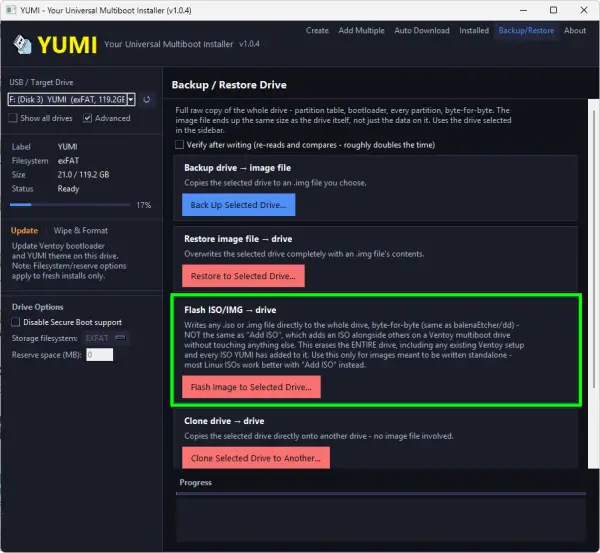
- Double check both the source and destination drives before continuing – these are raw disk operations that completely overwrite the destination.
- Use Test Boot in VirtualBox to boot the entire physical USB drive, including its bootloader and multiboot menu, inside VirtualBox without modifying the drive itself.
LAN Share – Boot ISOs Over Your Network From Any Browser
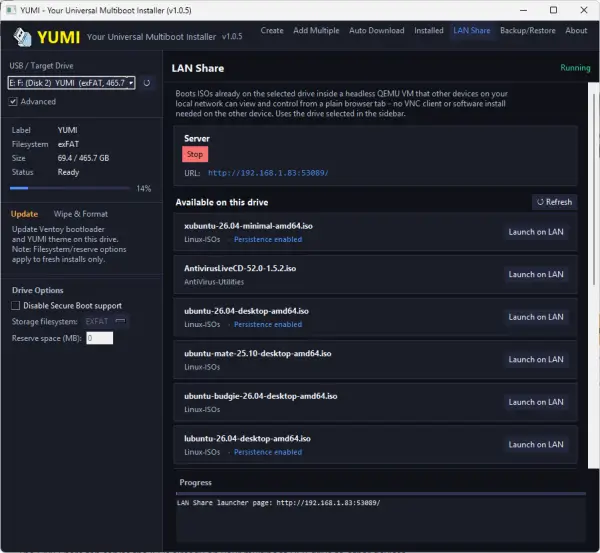
The LAN Share tab serves the ISOs already on your multiboot USB drive to other devices on your local network – no VNC client, no software install, and no second copy of the ISO. Open a browser on a phone, laptop, or another PC on the same network, pick a distro, and it boots right there.
Under the hood, LAN Share runs each ISO in a headless QEMU virtual machine and streams the display into the browser over noVNC, a WebSocket based VNC viewer – the same general approach sites like DistroSea use to preview a distro before downloading it, except here it runs locally on your own drive and your own network rather than a shared public server (note; it runs http, not https).
LAN Share can boot three things and automatically detects which applies to each entry, showing a badge so you know what you’re launching before you click:
- Any installed ISO, live – boots exactly like Test Boot does, discarding changes on exit.
- An ISO with persistence enabled – if a persistence file already exists for that distro, LAN Share boots with it attached, so changes carry over between sessions the same way they would when booting the USB drive directly.
- An already installed VM – if you’ve used Install to VM for a distro, LAN Share can boot straight into that installed OS disk instead of the live ISO.
- Open the LAN Share tab and click Start.
- YUMI Py shows a local network address, such as
http://192.168.1.x:PORT/. - Open that address in a browser on any other device on the same network – no app or extension needed, just a modern browser.
- Pick an ISO from the list and click Launch. The VM boots and its screen appears right on the page.
QEMU is required to be installed on the Linux host or stored as PortableEMU on the drive when run from Windows. It is downloaded and configured automatically via the built in downloader if it isn’t already present.
In order for LAN share to work, both the host running the USB and the client devices connecting to the shared bootable ISO files need to be on the same local network.
Two things worth knowing before you use it: don’t run Test Boot or Install to VM locally on an ISO at the same time it’s running over LAN Share, since both would write to the same file at once and can corrupt it – use one or the other per ISO at a time. And LAN Share has no login or access code, so it’s meant for trusted home or personal networks rather than shared office or public Wi-Fi, where anyone on the same network could reach the page.
Booting from Your YUMI Py USB Drive
Once you’ve added one or more operating systems or utilities, your YUMI USB drive can boot on virtually any computer that supports USB booting.
- Insert the USB drive into the computer you want to start.
- Restart or power on the computer.
- Open the computer’s boot menu by pressing the appropriate key during startup – commonly F12, F10, F2, Esc, or Del, depending on the manufacturer. If USB booting isn’t available, enable it or adjust the boot order in BIOS/UEFI settings.
- Select your USB drive from the boot menu.
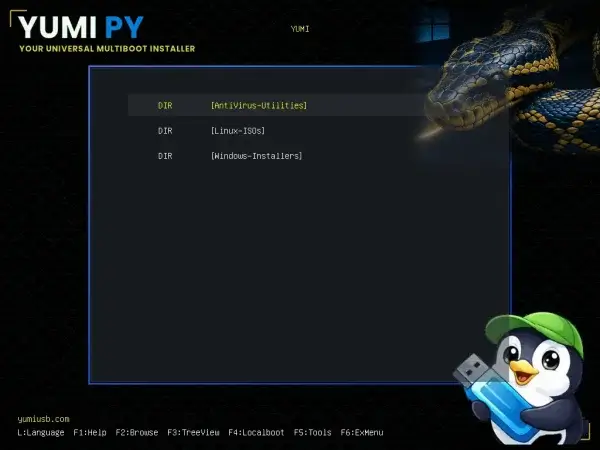
- When the YUMI boot menu appears, use the arrow keys to select the operating system or utility to launch, then press Enter.
Don’t want to reboot first? The Installed tab’s Run in QEMU and Install to VM features – or the LAN Share tab, if you want to boot from another device entirely – let you confirm an operating system boots correctly before you ever touch physical hardware.
Customizing the Default YUMI Theme
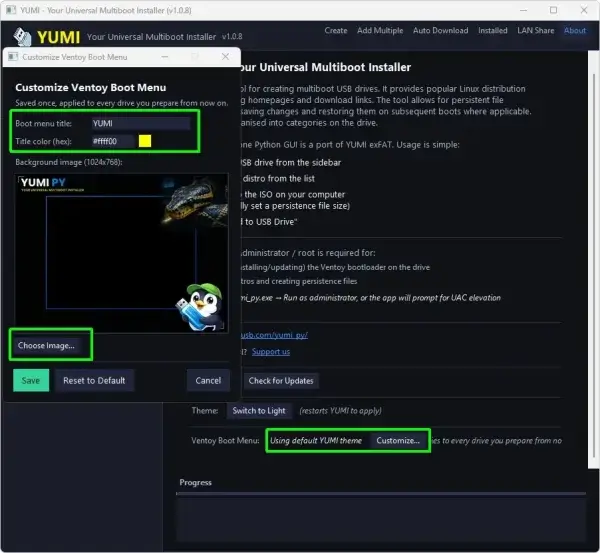
From the about tab, you can customize the default YUMI theme to use. Whatever you choose as the default will apply to any drive you create, thereafter. Options include the ability to personalize the boot menu title, title color and choose to upload a custom background image to use.
Frequently Asked Questions
Is YUMI Py free?
Yes. YUMI Py is free to download and use, and the source code is available for anyone who wants to review exactly how it works before running it.
Can YUMI Py create Windows installation USB drives?
Yes. YUMI Py supports Windows installation ISO files alongside Linux distributions, rescue disks, antivirus tools, and many other bootable utilities. Multiple operating systems can coexist on the same USB drive.
What Linux distributions does YUMI Py support?
YUMI Py supports hundreds of Linux distributions and bootable utilities. The app itself ships two Linux builds – a standard build for glibc 2.35+ systems and a legacy-compatibility build (manylinux2014, glibc 2.17+) for older distributions – so it runs on both current and older systems. Very minimal or extremely old distributions may still fall outside both tiers.
What image formats does YUMI Py support?
YUMI Py supports ISO and IMG images on both Windows and Linux. VHD and VHDX support is available on Windows only, since it relies on Windows-specific disk-attach and boot APIs; the option is hidden automatically when running on Linux.
What’s the difference between adding an ISO and Flash mode?
Adding an ISO through Create, Add Multiple, or Auto Download layers that image alongside everything else already on a multiboot drive, without touching the rest of the drive. Flash mode, found in the Backup/Restore tab, instead writes a single ISO or IMG file directly to the entire drive, byte-for-byte, erasing everything already there – the same approach tools like balenaEtcher or dd use. Flash is meant for images built to be the sole contents of a drive; most Linux ISOs still work better when added the normal way.
How does Auto Download work? Does it save ISO files on my computer first?
No. Auto Download retrieves the current release directly from the official source and installs it onto your USB drive without leaving a separate cached ISO on your computer.
Can I download more than one Linux distribution at a time?
Yes. Auto Download supports one to four concurrent downloads. Downloads run in parallel while installations are processed one at a time, since they all write to the same USB drive. An interrupted download resumes automatically the next time that drive is selected.
Can I remove one operating system without formatting the entire USB drive?
Yes. The Installed tab lets you remove individual operating systems or, where supported, delete only their persistence file. The rest of your multiboot USB drive is untouched.
Can I store normal files on the USB drive too?
Yes. Operating systems live alongside regular files on an exFAT data partition, so you can use remaining free space for documents, installers, backups, or anything else, just like a normal USB flash drive.
Can I test an operating system without rebooting my computer?
Yes. The Installed tab includes Run in QEMU for temporary live sessions and Install to VM for persistent virtual machine installs stored on the USB drive. For the complete multiboot drive, including its bootloader and menu, the Backup/Restore tab also supports launching the physical drive in VirtualBox.
What’s the difference between Run in QEMU, Install to VM, and Test Boot in VirtualBox?
Run in QEMU temporarily boots an installed operating system without making permanent changes.
Install to VM performs a full installation into a virtual hard disk stored on the USB drive so you can boot straight into that installed system later.
Test Boot in VirtualBox boots the entire USB drive, including the YUMI bootloader and multiboot menu, exactly as physical hardware would.
Can I boot a Linux distro from another device without downloading the ISO again?
Yes – that’s the core use case for LAN Share. If the ISO is already on your YUMI Py drive, any device on the same local network can boot it in a browser tab without copying the file anywhere else.
Do I need to install anything on the other device to use LAN Share?
No. LAN Share uses noVNC, a browser-based VNC client, so any modern desktop or mobile browser works. Nothing needs to be installed on the viewing device.
Is LAN Share secure?
LAN Share is meant for trusted home or personal networks. There’s no login or access code, so anyone who can reach your computer’s IP address on the same network can open the page and boot ISOs from the drive. We wouldn’t recommend enabling it on a network you don’t fully control, like a shared office or public Wi-Fi.
Does YUMI Py support persistence?
Yes. Many supported Linux distributions allow persistent storage, so changes, installed apps, and personal files survive across reboots. Where available, persistence is configured individually per operating system during installation.
Will YUMI Py overwrite an existing Ventoy installation?
No. YUMI Py detects existing Ventoy installations and works alongside them, recognizing Ventoy’s dual-partition layout instead of requiring the drive to be recreated.
Does YUMI Py support Secure Boot?
YUMI Py can work with Secure Boot-compatible boot environments through supported bootloaders and existing Ventoy installations. Secure Boot compatibility ultimately depends on the operating system or utility you’re booting.
Does YUMI Py verify backups and cloned drives?
Yes, when the optional Verify after writing feature is enabled. After a backup, restore, or clone finishes, YUMI Py compares the completed copy against the source to confirm every byte was written correctly.
Why does my antivirus flag yumi_py.exe?
The Windows build is compiled with Nuitka and requests administrator privileges for low-level USB operations. Newly released apps that request elevated permissions are commonly flagged by antivirus heuristics until they build a reputation with security vendors – a common false positive, not a sign the software is malicious. Planned code signing will reduce these warnings further.
Which Linux build should I download – standard or legacy?
Start with the standard build if you’re running a current distribution (Ubuntu 22.04+, Debian 12+, Fedora, and similar). If it fails to launch, or you’re on an older or more conservative system like a CentOS 7-era distro or an older LTS release, use the legacy-compatibility build instead. Run ldd --version in a terminal to check your glibc version if you’re unsure.
How is YUMI Py different from YUMI exFAT?
YUMI exFAT is the original Windows-only version built with NSIS.
YUMI Py is a complete rewrite in Python that runs natively on both Windows and Linux from a shared codebase, adding batch installation, automatic ISO downloads with resume support, stand alone QEMU virtualization, LAN Share network booting, improved drive management, Ventoy aware detection, and other new capabilities.
Does YUMI Py require an internet connection?
No. Internet access is only needed for optional features like Auto Download, LAN Share’s initial QEMU setup, visiting distribution homepages, checking for updates, or opening online documentation. Creating and managing an existing multiboot USB drive works fully offline.
What’s Next for YUMI Py?
YUMI Py is the start of a new chapter for YUMI. With a Python codebase, future improvements are developed once and delivered to Windows and Linux users at the same time.
Upcoming releases will keep expanding supported distributions, improving Linux desktop compatibility, refining the interface, and adding requested features based on community feedback.
Whether you’re installing Windows, exploring Linux, maintaining recovery media, or building a portable toolkit for work, YUMI Py continues the same goal that’s guided YUMI from the beginning: making it simple to carry multiple bootable operating systems and utilities on a single USB drive. If you need a different edition, compare YUMI exFAT, YUMI UEFI, and YUMI Legacy, or visit the YUMI USB homepage to choose the right version.